This example uses Cocos Creator 3.7.2. Other versions may behave differently.
An earlier article explained how to create a circle with the Mask component:
Creating a Circular Mask in Cocos Creator
. This article achieves the same visual result with a shader. The two approaches can produce different draw-call behavior.
Create circle-mask.effect
Paste in the following effect:
  1
  2
  3
  4
  5
  6
  7
  8
  9
 10
 11
 12
 13
 14
 15
 16
 17
 18
 19
 20
 21
 22
 23
 24
 25
 26
 27
 28
 29
 30
 31
 32
 33
 34
 35
 36
 37
 38
 39
 40
 41
 42
 43
 44
 45
 46
 47
 48
 49
 50
 51
 52
 53
 54
 55
 56
 57
 58
 59
 60
 61
 62
 63
 64
 65
 66
 67
 68
 69
 70
 71
 72
 73
 74
 75
 76
 77
 78
 79
 80
 81
 82
 83
 84
 85
 86
 87
 88
 89
 90
 91
 92
 93
 94
 95
 96
 97
 98
 99
100
| // Copyright (c) 2017-2020 Xiamen Yaji Software Co., Ltd.
CCEffect %{
techniques:
- passes:
- vert: sprite-vs:vert
frag: sprite-fs:frag
depthStencilState:
depthTest: false
depthWrite: false
blendState:
targets:
- blend: true
blendSrc: src_alpha
blendDst: one_minus_src_alpha
blendDstAlpha: one_minus_src_alpha
rasterizerState:
cullMode: none
properties:
alphaThreshold: { value: 0.5 }
radius: { value: 0.5, editor: { tooltip: "Circle radius (0–0.5; 0.5 touches the edges)" } }
softness: { value: 0.003, editor: { tooltip: "Edge feathering; smaller values produce a harder edge" } }
}%
CCProgram sprite-vs %{
precision highp float;
#include <builtin/uniforms/cc-global>
#if USE_LOCAL
#include <builtin/uniforms/cc-local>
#endif
#if SAMPLE_FROM_RT
#include <common/common-define>
#endif
in vec3 a_position;
in vec2 a_texCoord;
in vec4 a_color;
out vec4 color;
out vec2 uv0;
vec4 vert () {
vec4 pos = vec4(a_position, 1);
#if USE_LOCAL
pos = cc_matWorld * pos;
#endif
#if USE_PIXEL_ALIGNMENT
pos = cc_matView * pos;
pos.xyz = floor(pos.xyz);
pos = cc_matProj * pos;
#else
pos = cc_matViewProj * pos;
#endif
uv0 = a_texCoord;
#if SAMPLE_FROM_RT
CC_HANDLE_RT_SAMPLE_FLIP(uv0);
#endif
color = a_color;
return pos;
}
}%
CCProgram sprite-fs %{
precision highp float;
#include <builtin/internal/embedded-alpha>
#include <builtin/internal/alpha-test>
in vec4 color;
#if USE_TEXTURE
in vec2 uv0;
#pragma builtin(local)
layout(set = 2, binding = 12) uniform sampler2D cc_spriteTexture;
#endif
uniform Constant {
float radius;
float softness;
};
vec4 frag () {
vec4 o = vec4(1, 1, 1, 1);
#if USE_TEXTURE
o *= CCSampleWithAlphaSeparated(cc_spriteTexture, uv0);
#if IS_GRAY
float gray = 0.2126 * o.r + 0.7152 * o.g + 0.0722 * o.b;
o.r = o.g = o.b = gray;
#endif
#endif
o *= color;
#if USE_TEXTURE
vec2 center = vec2(0.5, 0.5);
float dist = distance(uv0, center);
float a = smoothstep(radius, radius - softness, dist);
o.a *= a;
if (o.a <= 0.001) discard;
#endif
ALPHA_TEST(o);
return o;
}
}%
|
Create a Material
Create a material and select circle-mask.effect in its Effect field.
Assign the Material to a Sprite
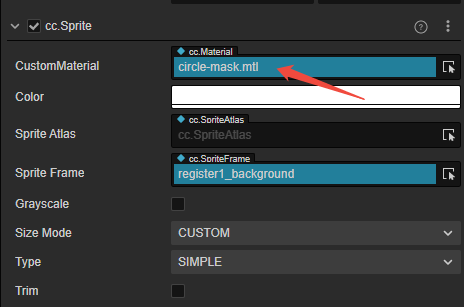
On the sprite node’s Sprite component, assign the circle-mask.mtl material:
Shader Mask Notes
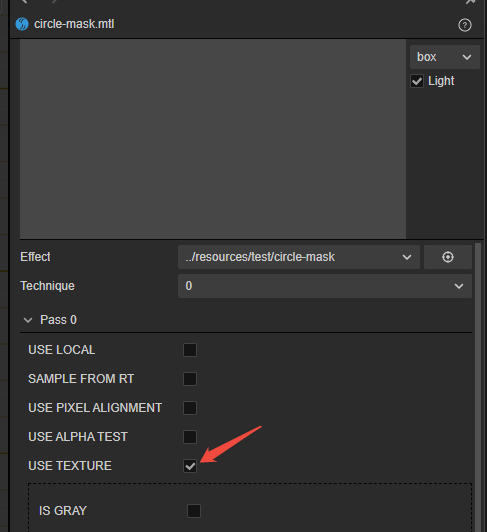
If the image becomes solid white after assigning the material, enable USE TEXTURE in the material.
Remotely loaded resources may not become circular after loading, so this approach is recommended for local resources.
A non-square image will appear as an ellipse rather than a circle.